MECU Pay powered by Payrailz®
Simple and secure money transfers



How to register, verify, and initiate a transfer with MECU Pay:
Need to split bills with friends, send a gift, or reimburse someone? With MECU Pay, it's easy and secure.
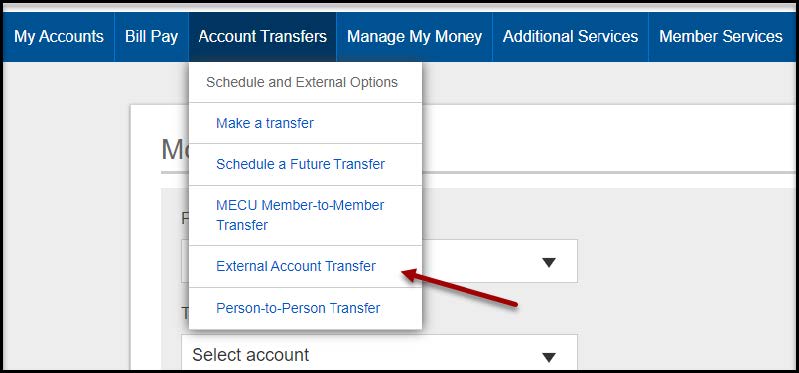
- Within Online Banking, click Account Transfers > External Account Transfer
- Review the Terms and Conditions, and click Complete Sign Up.
- Select Add External Account
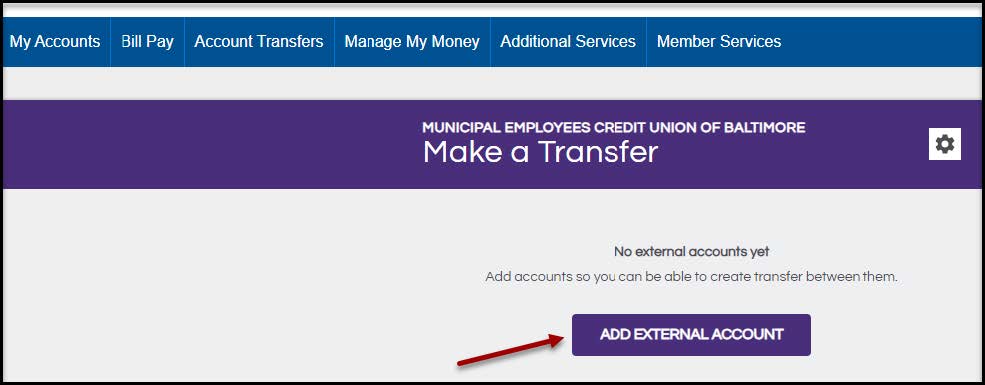
- Add External Account Button
- Complete the 2-step verification by selecting the delivery method and select Send Code.
- Enter the verification code sent and select Verify Code.
- To verify account ownership, either:
- Enter the username/password for the financial institution (instant account verification)
- Enter the routing/account number manually (can take up to 3 business days)
- Select the bank for the external account from the list of financial institutions
- Select Go to [Name of Bank] site
- Once signed in you will receive a notification that Trustly, Inc would like to access your account information and the type of information being collected. Select Continue for both.
- Select which external account(s) you would like to have transfers enabled.
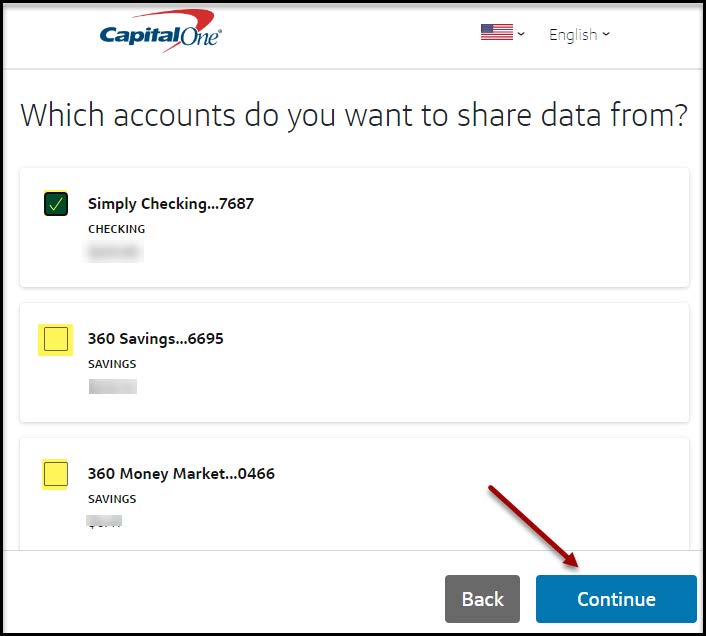
- Select Authorize to confirm and link the external account(s).
- Navigate to External Account Transfer to transfer funds between linked accounts.
- Scroll to the bottom of the “Select your bank” page and select Enter account details.
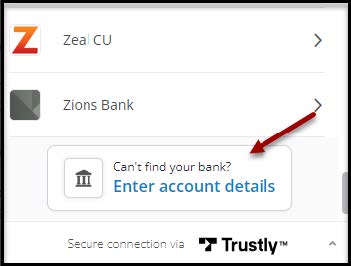
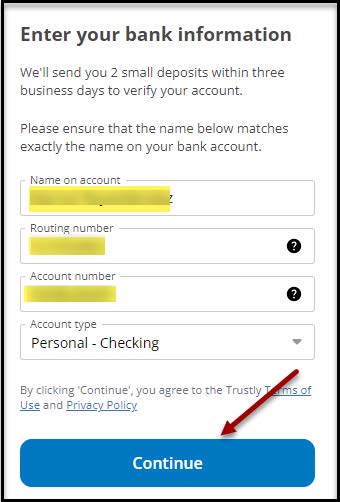
- Enter the name on account, routing/account numbers, and account type. Select Continue.
- A verification page notifying you 2 small deposits have been sent. Select OK. The account is now pending verification.
- After receiving the 2 small deposits log into Online Banking to verify the amounts. The external account(s) are now available to transfer.
- Select Transfer.
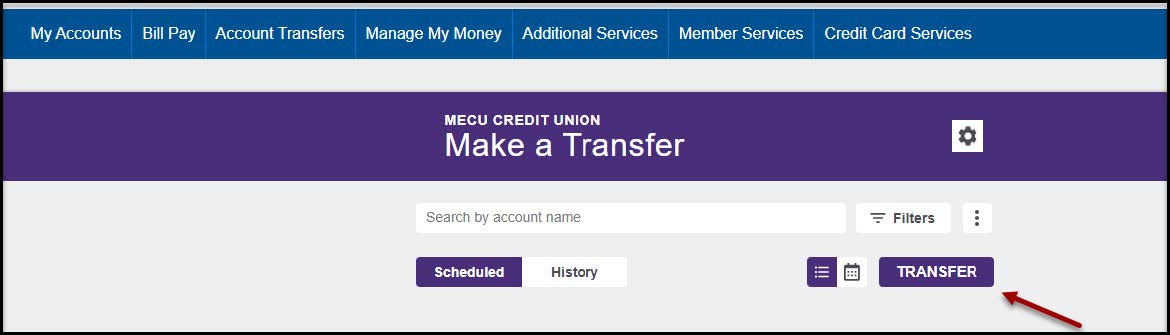
- Enter the amount, select the Transfer To and From accounts, send date, and frequency. Select Transfer.
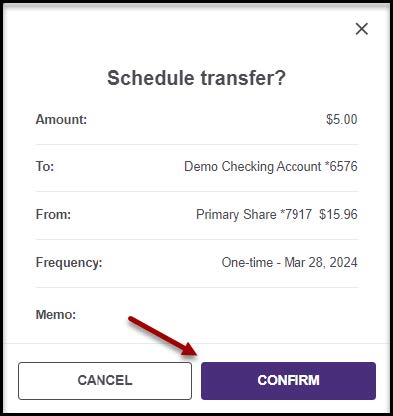
- Select Confirm Transfer and the transfer will be scheduled. Select Done.
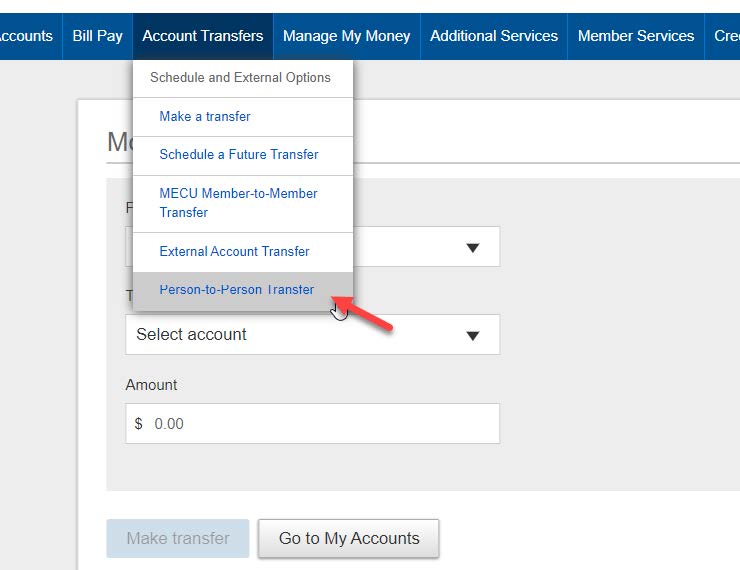
- Within Online Banking, click Account Transfers > Person-to-Person Transfer.
- Select Pay
- Add contact information of recipient
- Select the plus (+) sign (right hand corner) and complete the 2-step verification: select the delivery method and select Send Code. Enter verification code.
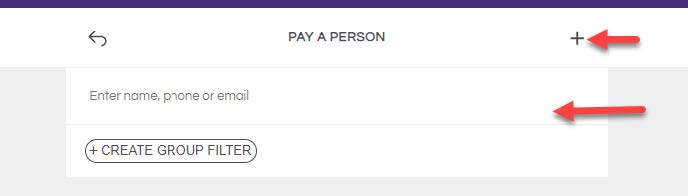
- Enter Name, phone number or email in the dialog box, select Add. Complete the 2-step verification: select the delivery method and select Send Code. Enter verification code.
- Select the plus (+) sign (right hand corner) and complete the 2-step verification: select the delivery method and select Send Code. Enter verification code.
- Enter recipient’s contact information
- Establish a security question for your recipient to answer before they can receive payment. Provide the answer to them.
- Select Save or Save and Pay to initiate a payment
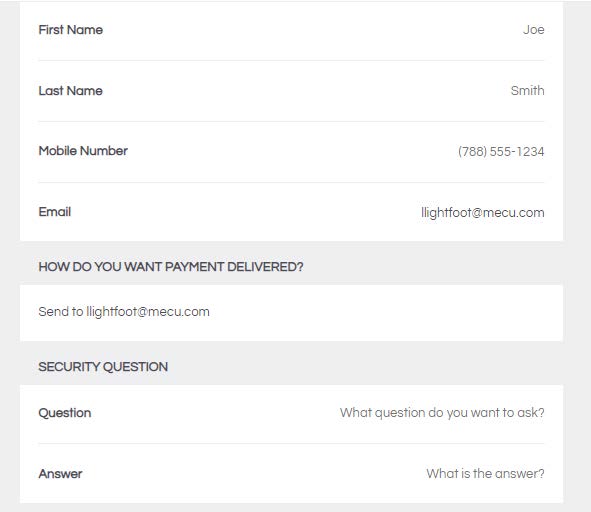
- Select the person and the way you would like them to receive the funds, via email or text.
- Select amount. Note: the minimum amount to send is $5.00.
- Select account that funds will be withdrawn from.
- Select frequency (one-time payment, weekly, monthly, etc.) and select Pay.
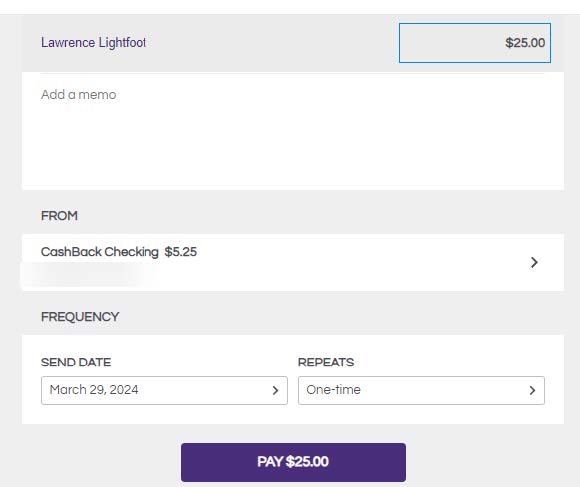
- Select Confirm and Done. The payment has been scheduled.
Accept a Payment
- Recipient will receive a text message or email to accept payment.
- Answer security question.
- Select how to accept payment via account or debit card payment. Note: $1.00 will be deducted from the amount received if the member selects to have the funds expedited.
Experience the future of easy money transfers with MECU Pay!
Tools and services designed for your everyday needs.

Fraud Protection

Become a Member
Join MECU's Community of Members
Get access to better interest rates, free financial education, discounts on insurance and more.