External Loan Pay
Make secure loan payments online



How to get started:
This innovative solution enables you to easily make secure MECU loan payments online from a non-MECU account without visiting a branch or writing a check.
- Sign into Online Banking.
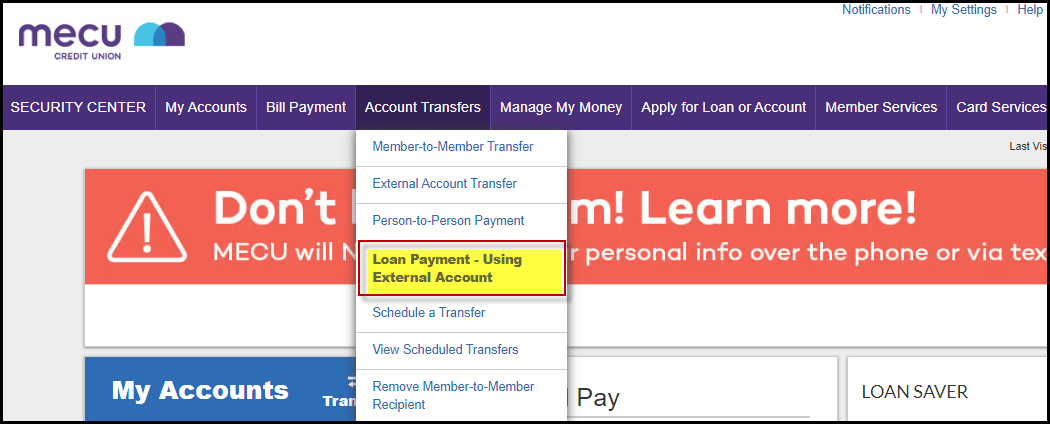
- From the Account Transfers header select Loan Payment – Using External Account.
- The Scheduled Loan Payments screen will display. Select Manage External Accounts.

- When the Manage external accounts page launch, select Add an account.

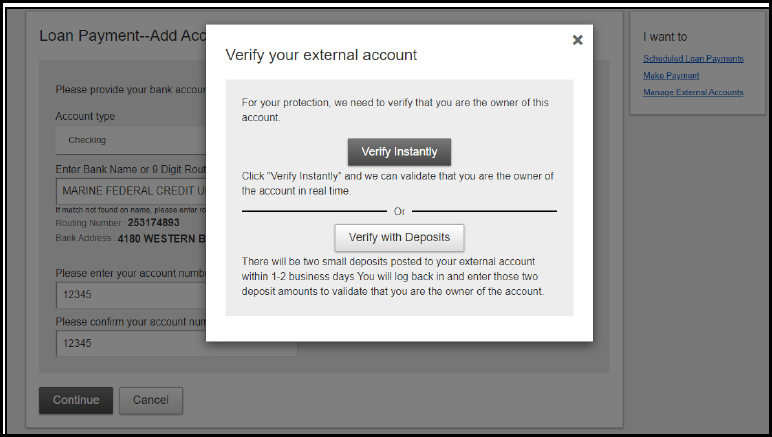
- On the Loan Payment - Add Account screen, enter the Account Type, 9 Digit Routing Number, and the Account Number for the external account being used to make the payment. Select Continue.
- You will be prompted to verify account ownership. The sender must be an authorized owner on the external account. Verification performed by:
- Verify Instantly - enter the username and password for the external financial institution.
- Verify with Deposits - we will send two small deposits to the external account within two business days. You will need to log back into this system to confirm the two deposit accounts.
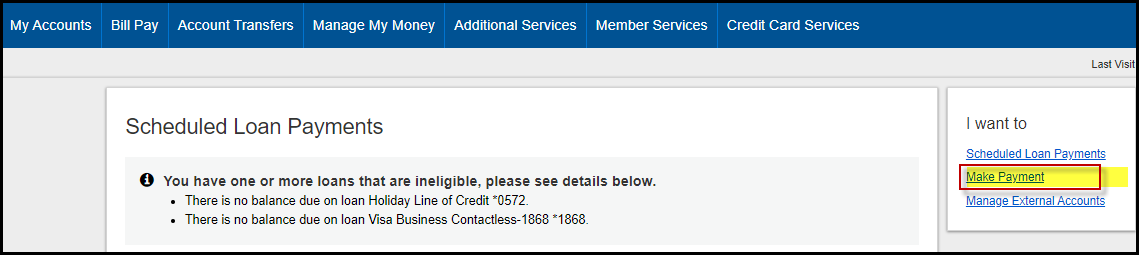
- From the Account Transfers header select Loan Payment – Using External Account. This will launch the Schedule Loan Payments screen. Select Make Payment.
- Select the Pay from bank account option to use the external account you set-up.
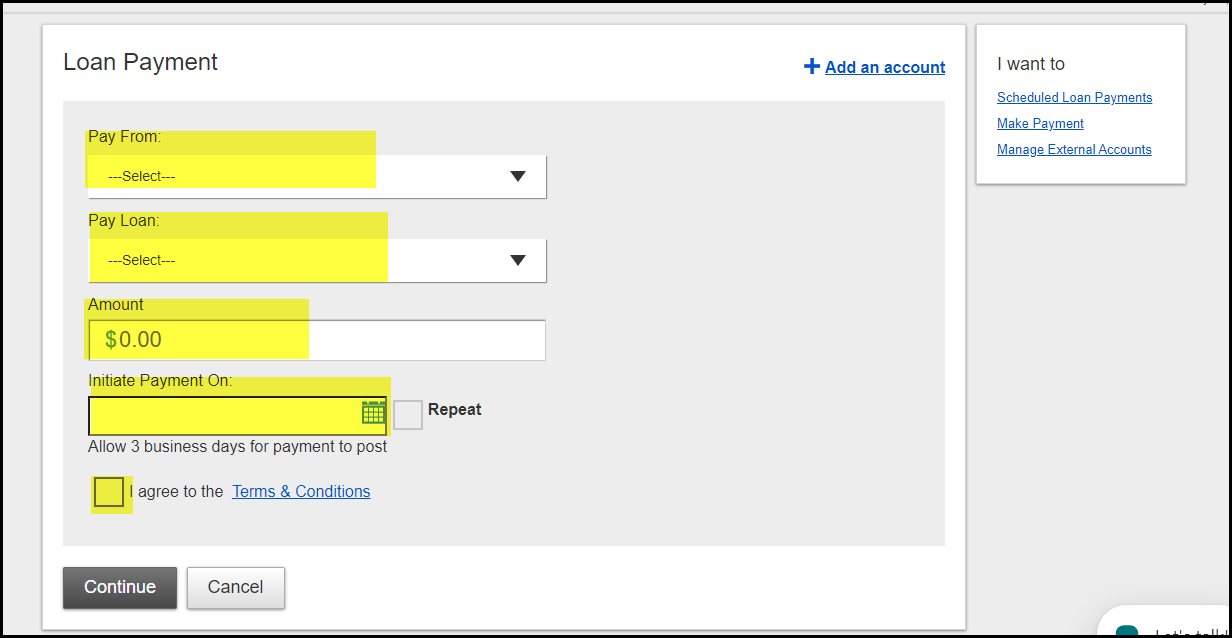
- On the Loan Payment screen select the Pay From (External Account), Pay Loan, Amount, date to Initiate Payment, and agree to the Terms & Conditions. Select Continue.
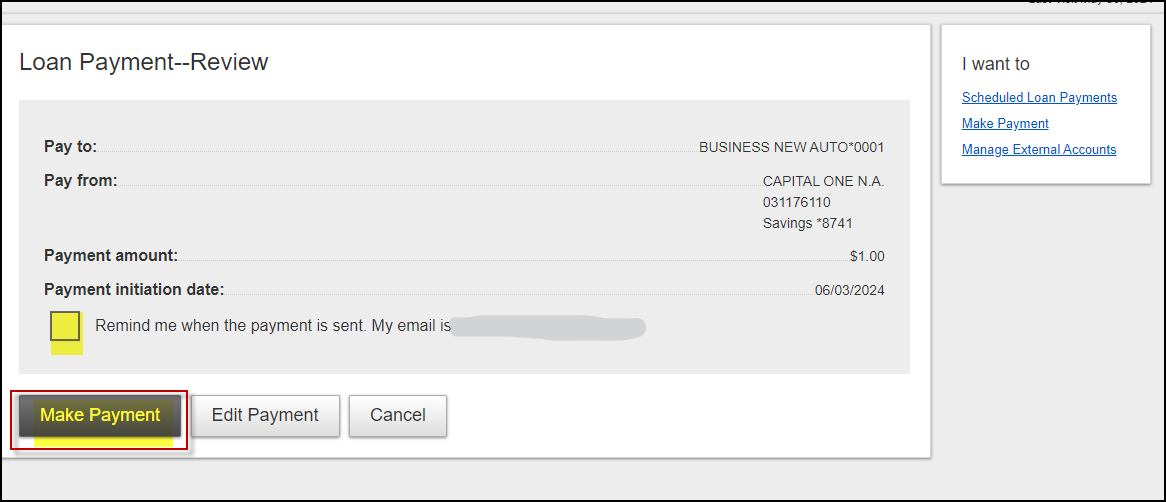
- The Loan Payment – Review screen will display. Select Make Payment to process the payment or select Edit Payment to update the information and then Make Payment. The payment can take up to three business days to post to the loan.
- A Loan Payment – Confirmation page will appear to confirm the scheduling of the payment.
Reminder
MECU Member must be listed as an authorized owner on the external account. Establishing an external loan payment from an account in which you are not an owner violates the terms and agreement and will result in permanent termination of any MECU Payments environment. MECU Mortgages and Credit Cards cannot be paid using this service.
Tools and services designed for your everyday needs.

Fraud Protection

Become a Member
Join MECU's Community of Members
Get access to better interest rates, free financial education, discounts on insurance and more.