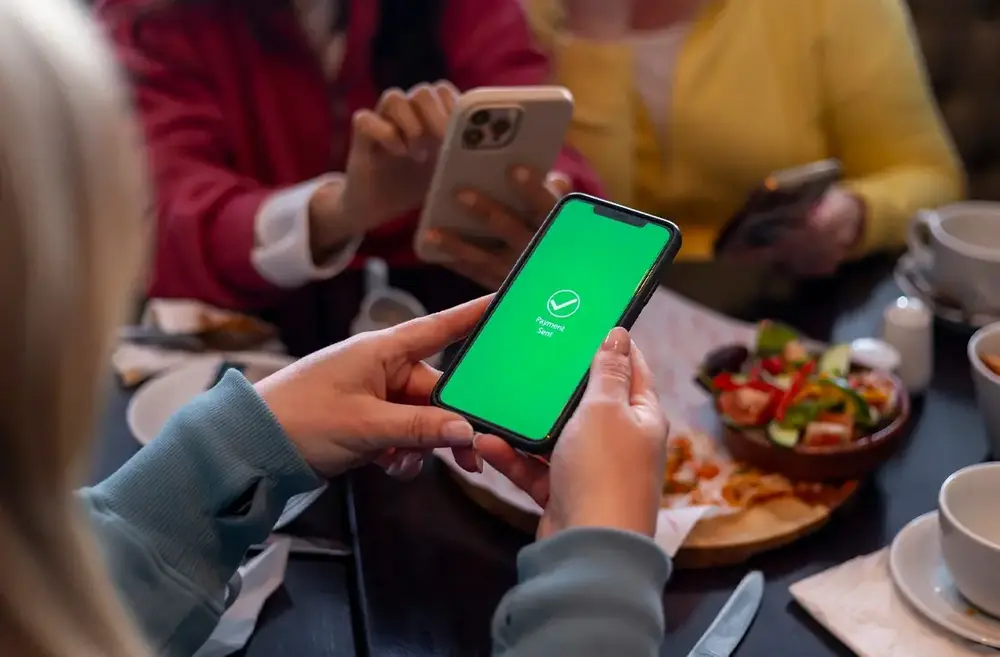
Digital Wallet

Your digital wallet is a secure way to pay

Download the app, add your card, and start paying. It's that easy!
Make shopping trips faster by having your card at your fingertips
It's safe! Merchants will never receive your card information, just a token

How to get started:

Everyone wants to ensure their financial data is safe and secure. With your phone's Digital Wallet, you can tap to pay wherever you see the contactless symbol. Your identifying information (your name, security code, or MECU account number) is not transmitted to the merchant when you tap to pay. Getting started is easy as 1,2,3!

Apple Pay

You'll need a supported iPhone or iPad to add your MECU Credit Union credit or debit card to Apple Pay. Open the Wallet® app, swipe down, and tap the plus sign. Use your camera to enter the card number or add it manually.

Google Play

Download the Google Pay App from the Google Play Store to add your MECU credit or debit card to Google Pay. Snap a picture or enter your card credentials. If your MECU card is already linked to your Google Account, you can add it to the Google Pay App by confirming a few details.

Samsung Pay

To add your MECU credit or debit card to Samsung Pay, download through Samsung Galaxy App Store or Google Play Store. Snap a picture or enter your card credentials.

How to use Apple, Google, or Samsung Pay in participating stores.

  1. Look for the Pay Wave Pay wave icon. or Apple, Google, or Samsung Pay symbol at checkout and hold your phone near the contactless reader.
  2. Place your finger on the TouchID or use FACE ID. You can also enter a passcode.
  3. Keep your phone by the reader until it vibrates and beeps, indicating your payment was accepted.

Visa's "Tap to Add Card" Service

Visa's "Tap to Add Card" service will allow members to add their Visa debit card or Visa credit card to a digital wallet by simply tapping the physical card on the NFC-enabled smartphone. This is a faster, more secure, and convenient way to add a card, as it creates a unique token that replaces the cardholder’s account number.

  • Tap: Hold physical Visa card against smartphone.
  • Add: The service will automatically find the card and begin the process of adding it to a participating digital wallet.
  • Secure: The process creates a unique, secure network token for the card, which protects the card number from exposure and reduces fraud.
  • Verify: Members will need to verify their card by contacting MECU and notifying us that they are attempting to add their card to their wallet (Apple Pay, Samsung Wallet, Google Pay). We will need to confirm the phone number associated with the device is already attached to the member’s profile. Recent phone number changes will require a delay in MECU authorizing the card to the wallet, as enhanced due diligence verification is required. 
  • Speed and Convenience: It's a much faster way to add a card to your digital wallet, especially compared to manually typing in the card details.
  • Security: It reduces the risk of errors and fraud associated with manual entry by using tokenization.
  • Error Reduction: It eliminates the possibility of mistakes when entering your card information by hand.

You can use this feature on a smartphone with a participating digital wallet, such as Apple Pay, Google Pay, or Samsung Wallet.

Frequently Asked Questions

Joining is as easy as opening an account. That's all it takes to gain access to the great personal and business products, services and benefits we offer. Check out our handy Switch Guide to help you through the process.

Login to Online or Mobile Banking (via tablet), select “Transfers” and then click “Detailed”. Select “Transfer to Another SECU Member” and enter the information requested. Once the Account has been added, you will see it as a selection to transfer to in the “Transfers” section. For Mobile Banking (via phone), click on “Transfers”, and then “Add an Account”. You will be displayed with the Internal Account screen where you will complete the information required. Once the Account has been added, you will see it as a selection to transfer to in the “Transfers” section.

You can find your account number by logging into Online Banking or by calling MIA. If you call MIA, simply say "Can you help me find my account number?"

Log into the MECU mobile app, click "Check Deposit," and upload a photo of your check.

Login to Online Banking and select “More”.

Become a Member
Join MECU's Community of Members

Get access to better interest rates, free financial education, discounts on insurance and more.

Make an Appointment