Mobile Banking

An updated, on-the-go banking experience

We've updated your Mobile Banking experience!

You asked and we listened! The MECU Credit Union Mobile App has received an update so you can bank anytime, anywhere with a "tap" of a finger. So, what's new?

"More" Menu Changes
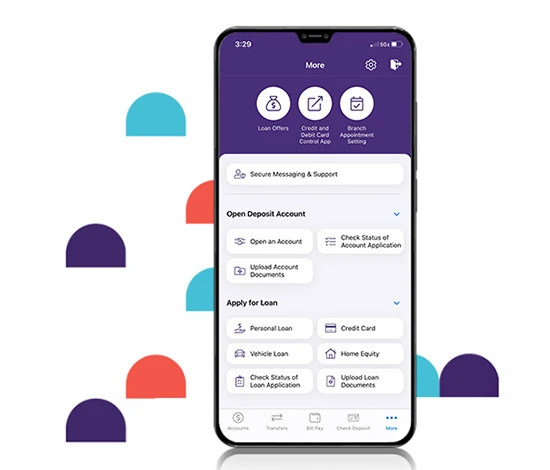
Many of the new functions appear after you tap the "More" link in the bottom, right navigation bar.
  • Links to top banking functions:
    • Loan Offers
    • Credit and Debit Card Control
    • Branch Appointment Settings
  • Secure Message & Support link for easy access
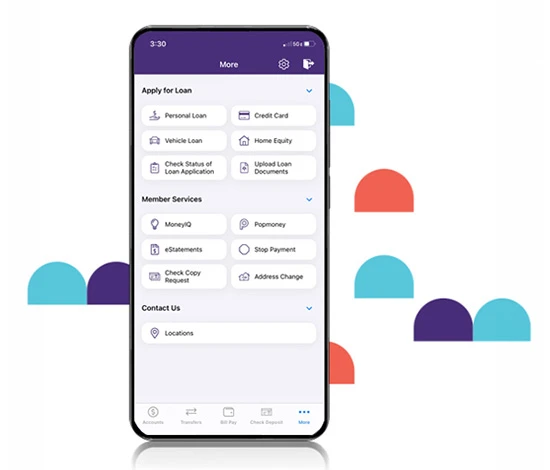
  • Three subheads with an easy-to-navigate format:
    • Open Deposit Account
    • Apply for Loan
    • Member Services
New Mobile App functions
For the first time, you will be able to:
  • Upload documents for recently submitted loan or deposit applications
  • Access applications with a single click
  • Submit a check copy request
  • Complete an address change

Use your smartphone or tablet to connect to MECU Mobile Banking.

Schedule secure bill payments and move money between accounts
Deposit your checks by simply taking a photo
View and redeem cash back deals and pre-approved loan offers
Get notified of low balances, large withdrawals and more
Securely log in using your fingerprint or face recognition

Ready to get started?

View account activity, deposit checks and pay bills securely from your mobile phone or tablet - anywhere you go. With our MECU Mobile App, keeping up with your money is a snap (or tap).

  1. Get our Mobile App: Download from the Apple App Store or Google Play
  2. Log In: Sign in with your MECU Online Banking username and password. If you don’t already have a username and password, you can enroll right from your mobile device.
  3. Register your device: Setup a one-time passcode. Enter the code and your password, and you're good to go.

Protecting your accounts and privacy is a top priority at MECU. We believe that wireless transactions, such as those involved in Mobile Banking transactions, require strong data encryption to ensure security and to protect the communication from attack during data transmission.

  • MECU's Mobile Banking service uses the highest level of security available.
  • The credit union will never send unsolicited messages notifying you of the status of your account, requesting any personal or account information, or asking you to verify your PIN
  • If you receive text messages of this nature, please report them to MECU immediately without replying to the request.

MECU Credit Union values your privacy. If you wish to delete your Mobile Banking and Online Banking account, please contact us at 410-752-8313. You can also send us a secured message by signing into Online Banking or Mobile Banking.

Please note that deleting your Mobile Banking or Online Banking access does not close out your MECU Accounts; however, closing Mobile Banking or Online Banking access will cancel:

  • Access to electronic statements
  • Termination of Bill Pay and any prior history
  • Termination of Person-to-Person, Account-to-Account, or Member-to-Member transfers and any prior history
  • Termination of any auto transfers or payments
  • The ability to securely send messages
Enroll in eStatements using Mobile Banking:
  1. Get the Mobile App: Download from the Apple App Store or Google Play.
  2. Log In: Log in with your Online Banking username and password. If you don’t already have a username and password, you can enroll right from your mobile device.
  3. Register your device: Setup a one-time passcode. Enter the code and your password.
  4. Enroll in eStatements: Tap the More section in the task bar and select eStatements. After accepting the MECU eStatement Disclosure Agreement, you're good to go.

Frequently Asked Questions

Joining is as easy as opening an account. That's all it takes to gain access to the great personal and business products, services and benefits we offer. Check out our handy Switch Guide to help you through the process.

Login to Online or Mobile Banking (via tablet), select “Transfers” and then click “Detailed”. Select “Transfer to Another SECU Member” and enter the information requested. Once the Account has been added, you will see it as a selection to transfer to in the “Transfers” section. For Mobile Banking (via phone), click on “Transfers”, and then “Add an Account”. You will be displayed with the Internal Account screen where you will complete the information required. Once the Account has been added, you will see it as a selection to transfer to in the “Transfers” section.

You can find your account number by logging into Online Banking or by calling MIA. If you call MIA, simply say "Can you help me find my account number?"

Log into the MECU mobile app, click "Check Deposit," and upload a photo of your check.

Login to Online Banking and select “More”.

Become a Member
Join MECU's Community of Members

Get access to better interest rates, free financial education, discounts on insurance and more.

Mobile Banking requires that you download the MECU Mobile Banking app and is only available for select mobile devices. Message and data rates may apply.

Make an Appointment