Payroll Deduction
View our important notice for deposits and loan payments.



Payroll Deduction allowed participating members to make deposits and loan payments to their MECU deposit and loan accounts at time of payroll processing. Effective on the date stated in the letter mailed to you, the payroll deduction service will be discontinued in an effort to provide you greater control over your funds and payments.
Your HR department provided instructions, found on your letter, to set up Direct Deposit to continue having your funds credited to your MECU account. In order to set up Direct Deposit, you will need MECU’s ABA/Routing number, which is 252076468, and your savings or checking account number which can be found within Online Banking or on your monthly statement.
Once the Direct Deposit is credited to your designated MECU account, automatic transfers between your MECU accounts are easy to schedule within Online Banking.
- Within Online Banking, you can transfer funds between your deposit accounts.
- You may make a payment by performing a transfer from your MECU account to your loan.
- You may also utilize External Loan Pay to make a payment online using an account from another financial institution.
MECU has nine convenient branch locations with knowledgeable staff to accept your deposits and loan payments, and to transfer funds.
Call 800-248-6328 if you have any questions concerning this notice. Our goal is always to improve your member experience and we are here to assist you with this change.
Thank you for you being a loyal MECU member.
How to get started:
- From the Account Transfers header select Loan Payment – Using External Account. This will launch the Schedule Loan Payments screen. Select Make Payment.
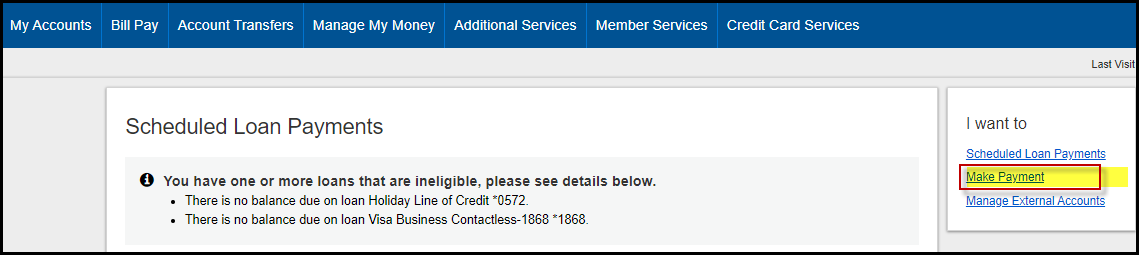
- Select the Pay from bank account option to use the external account you set-up.
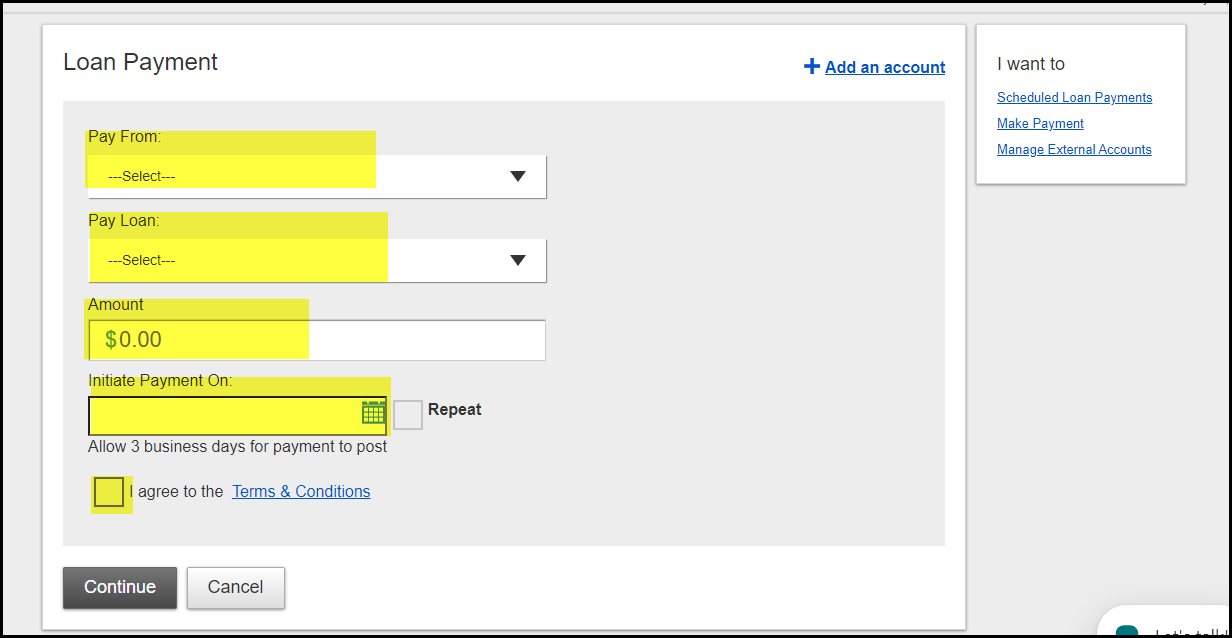
- On the Loan Payment screen select the Pay From (External Account), Pay Loan, Amount, date to Initiate Payment, and agree to the Terms & Conditions. Select Continue.
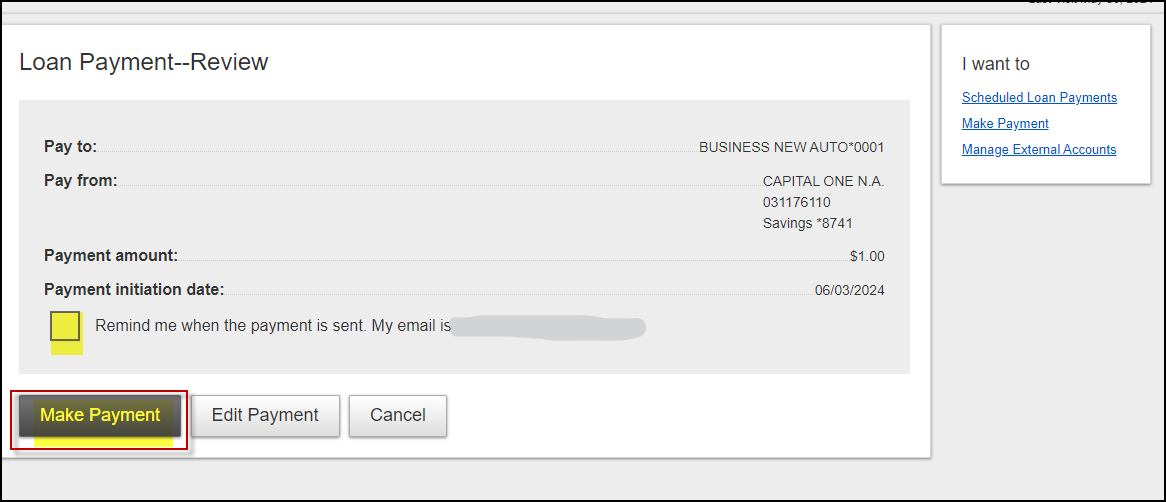
- The Loan Payment – Review screen will display. Select Make Payment to process the payment or select Edit Payment to update the information and then Make Payment. The payment can take up to three business days to post to the loan.
- A Loan Payment – Confirmation page will appear to confirm the scheduling of the payment.
- Sign into Online Banking.
- From the Account Transfers header select Loan Payment – Using External Account.
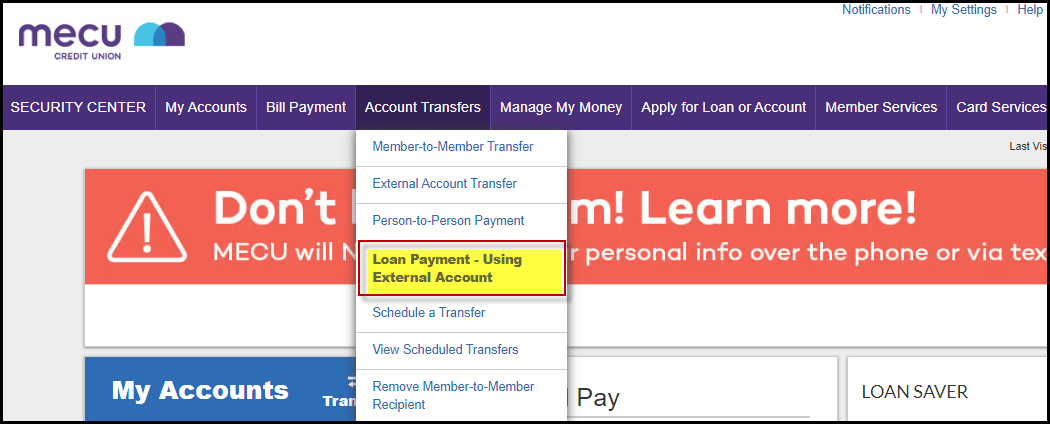
- The Scheduled Loan Payments screen will display. Select Manage External Accounts.

- When the Manage external accounts page launch, select Add an account.

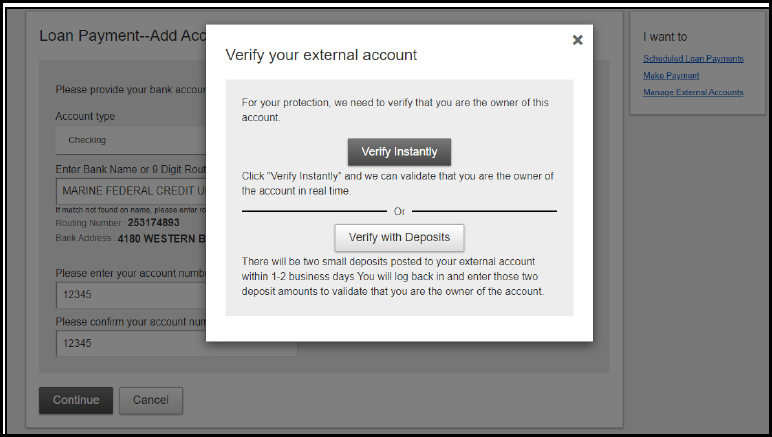
- On the Loan Payment - Add Account screen, enter the Account Type, 9 Digit Routing Number, and the Account Number for the external account being used to make the payment. Select Continue.
- You will be prompted to verify account ownership. The sender must be an authorized owner on the external account. Verification performed by:
- Verify Instantly - enter the username and password for the external financial institution.
- Verify with Deposits - we will send two small deposits to the external account within two business days. You will need to log back into this system to confirm the two deposit accounts.
- Sign into Online Banking or Mobile Banking.
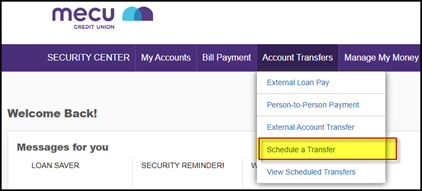
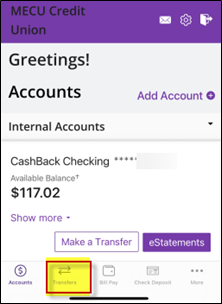
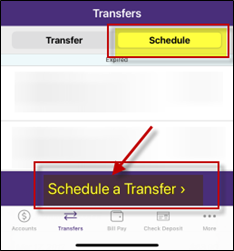
- In Online Banking from the Account Transfers header select Schedule a Transfer. Or, in Mobile Banking, select the Transfers icon at the bottom of the page, then select the Schedule option and Schedule a Transfer.
- Complete the required fields. For Repeat transfer select the frequency for the recurrence of the activity.
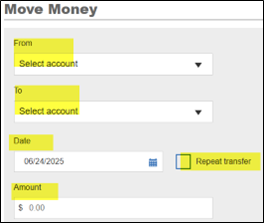
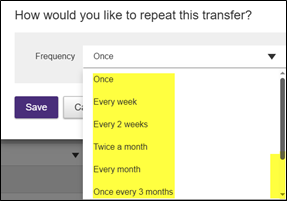
- Provide start day or date and an end date for the transfer, select save. This builds your recurring transfer record.
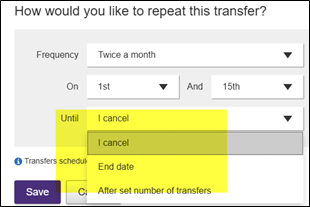
Reminder: If funds are not available in the “from” account, the transfer will not process. The system will not perform a look back after the first attempt.