|

Browsers:
Online Banking is supported in the following Browser Platforms:
| PC: |
|
IE6, IE7,
Firefox 3.0 or higher |
| Mac: |
|
Safari 3.1 |
Internet Explorer 8 is not currently supported. |
|
Updated as of March 19, 2010
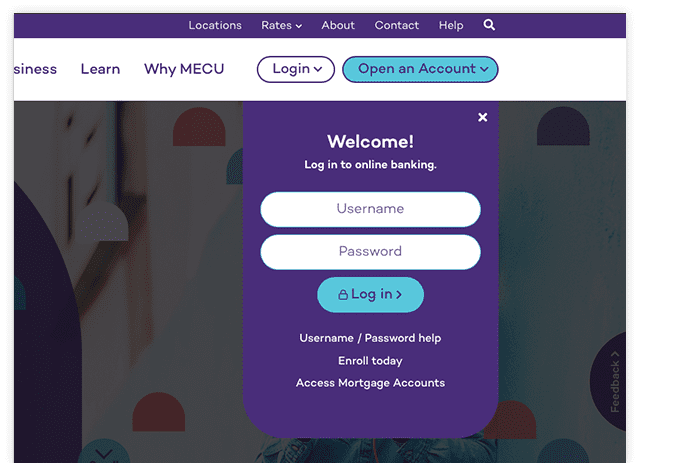
Already comfortable with the new Online Banking System? Sign in using the box on the left. If not, please read below.
Please Read Carefully
If you have signed into On-Line Banking since November 3, 2009 and you have selected your New Password, CONTINUE using the Password you have selected each and every
time you sign-in after that.
The next time you sign in after you have selected your New Password, do not use the last 4 digits of your Social Security Number plus your 4 digit year of birth as your Password or the system will lock you out of your account.
Please call our Call Center at 410-752-8313 and press Option 6 or visit one of our branches during regular business hours if you become locked out of your account.
Please Read Carefully
If you have NOT yet attempted to sign in to Online Banking
since November 3, please follow these steps to sign in for the first time:
Step 1. User name
•Enter your MECU account number in the space that says User Name
•Click Log In
Step 2. Password (only if this is your first time signing in to Online Banking
since November 3, 2009)
•In the space labeled Password, enter the last 4 digits of your Social Security
Number and your 4 digit birth year. Example 12341954
Step 3. Change Your Password
•In the spaced labeled Current Password, enter the last 4 digits of your Social Security
Number and your 4 digit birth year
•In the space labeled New Password, enter a new password of your choice
It must be at least 6 characters including 1 number
•Confirm your new password
•Click Submit- Important! Use your New Password the next time you sign in. Do NOT use the last 4 digits of your Social Security Number and your 4 digit birth year anymore.
Step 4. Online Banking Disclosure
•Click Agree to accept the disclosure
Step 5. Select a PassMark Image
•Choose a photo you'll recognize each time you log in
Step 6. PassMark Enrollment
•Choose a phrase to be associated with your photo
•Choose 3 Challenge Questions and enter your answers
•Click Finish
|